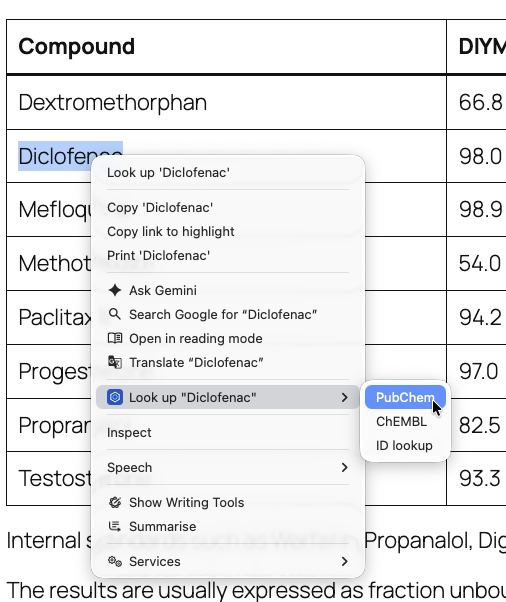
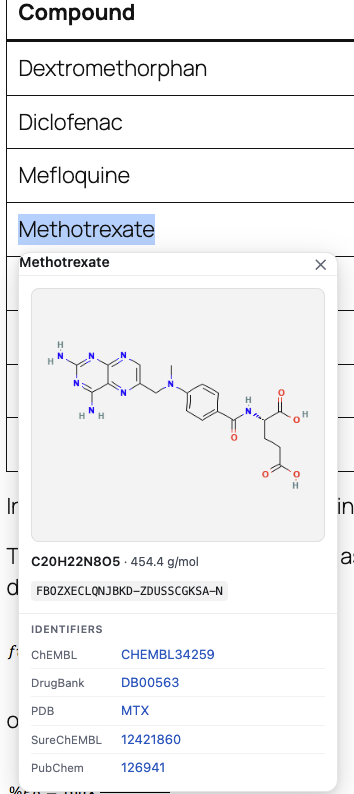
This a Google Chrome Extension, it allows you so select a drug name in a web page (for example), right-click and from the dropdown menu there is the option to choose either PubChem or ChEMBL as shown below. Compound Lookup turns any compound name on a web page into a structure and a set of database identifiers, without leaving the page.
• PubChem — 2D structure, molecular formula, molecular weight and the PubChem CID
• ChEMBL — the same, with the ChEMBL ID
• ID lookup — the compound’s identifier in ChEMBL, DrugBank, PDB, SureChEMBL and PubChem at once, together with its InChIKey
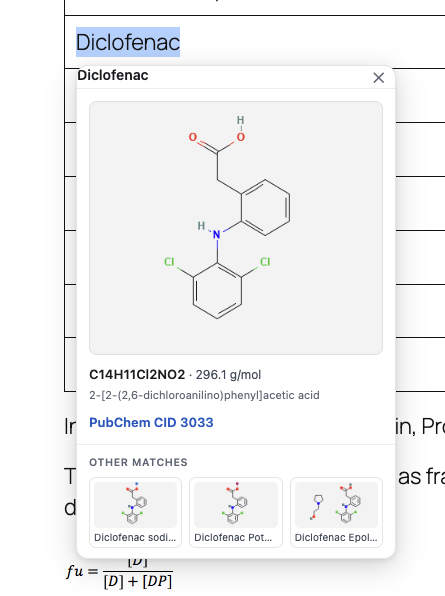
If you then choose for example PubChem the structure is displayed (plus other matches) and a link to the PubChem record via the CID, which opens in a new browser window.
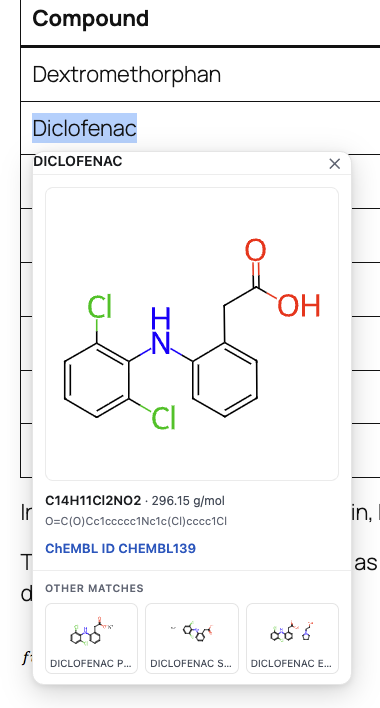
Alternatively if you choose the ChEMBL option the structure is shown with a link to the ChEMBL record via the ChEMBL ID.
The ID Lookup option uses UniChem (https://www.ebi.ac.uk/unichem/)
UniChem is large-scale non-redundant database of pointers between chemical structures and EMBL-EBI chemistry resources. Its purpose is to optimise the efficiency with which structure-based hyperlinks may be built and maintained between chemistry-based resources, and is particularly suitable for creating such links ‘on the fly’ (by use of REST web services).
The plugin first searches PubChem to get the structure and the InChiKey, InChIKeys are a hashed version of a full InChI used to facilitate speedier searching. The plugin uses the InChiKey to search UniChem to provide a list of identifiers and links to the appropriate data sources. UniChem actually has links to many more data sources but I’ve only included a the likely most popular.
This was created with the help of Claude Code and I’ve only tested this on my machine (M2 Ultra Mac Studio, macOS Tahoe 26.6.2) Google Chrome Version 152.0.7977.84 (Official Build) (arm64).
Installation instructions
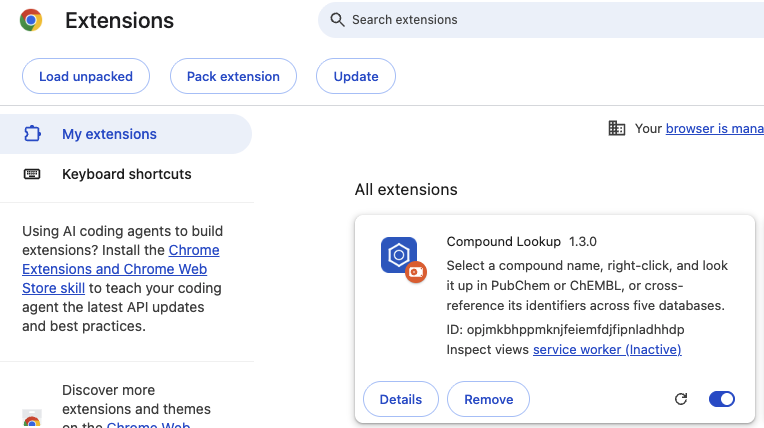
Download the file below, Unzip it, put the folder somewhere permanent (not Downloads), then go to chrome://extensions, turn on Developer mode top-right, click Load unpacked, and select the folder. Full instructions are in INSTALL.txt inside the zip.
Chrome may warn about developer-mode extensions on startup — that’s normal for anything installed this way, choose Keep.
Extension that allows the user to view the structure of any drug/molecule mentioned in a web page.
A few notes
Selections are cleaned up as you’d expect, so a name grabbed mid-sentence with a trailing full stop or wrapping quotes still resolves — while names that genuinely contain punctuation, such as (R)-ibuprofen, 2,4-D and N,N-dimethylformamide, are left intact. Only the text you select, and only to the database you picked from the menu is sent. This only works for html pages not displayed pdf.
The card says which kind of match you got. A weak one is labelled “uncertain” with a link to the database’s own search. In ID lookup, a source that holds only a close relative is flagged — ibuprofen’s PDB entry is marked “different stereochemistry”, because the PDB holds the single enantiomers rather than the racemate — and a source holding nothing says so, because absence is informative too.
Compound data and structure images come from PubChem (NIH/NLM/NCBI), ChEMBL (EMBL-EBI) and UniChem (EMBL-EBI), through their public APIs. This extension is an independent tool and is not affiliated with, or endorsed by, any of those organisations.
There is an equivalent extension for Safari here