How often have you found a structure file on your desktop and wondered what it contained? You could open it in the relevant software application but one of the advantages of macOS QuickLook is you can hit the spacebar and quickly view the contents, that is if you have the relevant QuickLook extension. Whilst macOS provides QuickLook extensions for a number of common file types (Images, text, PDF etc.) it does not provide QuickLook extensions for scientific file types. Burette is a macOS desktop app, Finder Quick Look extension, and source-built iPhone preview app for molecular structure files.
Burette is available on GitHub https://github.com/SergeiNikolenko/Burrete or can be installed using Brew
brew tap SergeiNikolenko/burette
brew install --cask burette
You may need to trust before downloading
brew trust --cask sergeinikolenko/burette/buretteThis will install Burette in your applications folder. If you then click on Burette you will get a message that it was downloaded from a non AppStore site and has not been checked for malware. If you are happy to use it you need to go to the Privacy and Security settings and authorise it. The App will be registered and two extensions will then be installed.
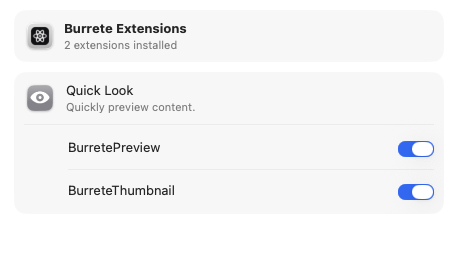
You are now set to use Burette in two ways:
- Finder previews: select a molecular file in Finder and press Space.
- Desktop workspace: open Burrete directly to inspect files in tabs, browse project folders, search commands and structures, sketch molecules, review collections, and send files to external chemistry tools.
Using Burette
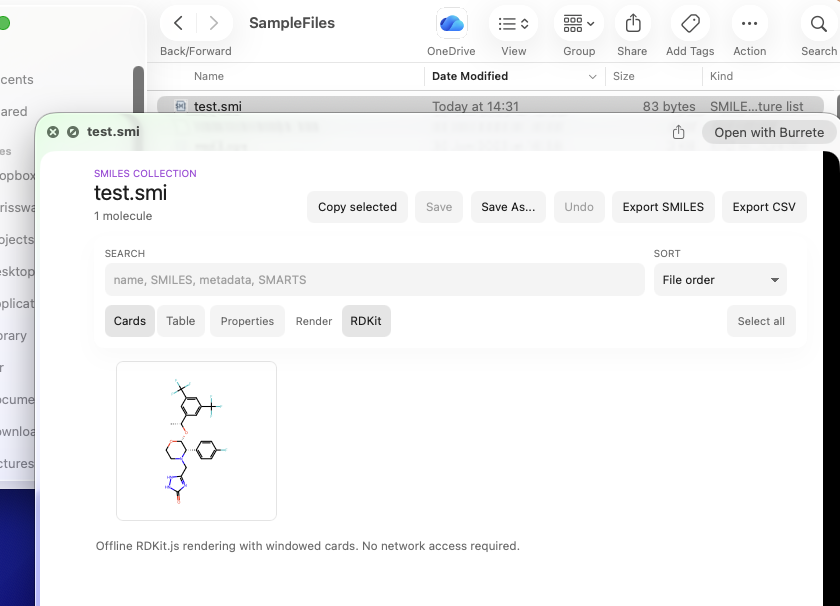
Select a file in the finder, in this case a file containing a SMILES string with the extension .smi and hit the space bar. A popup window opens up showing the rendered structure.
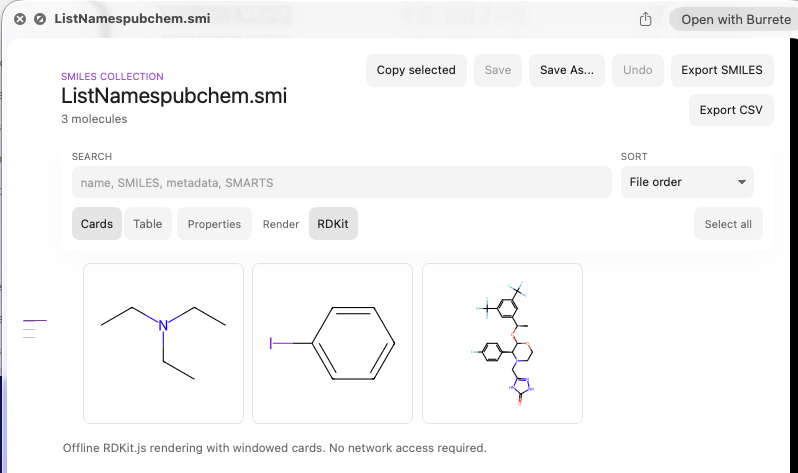
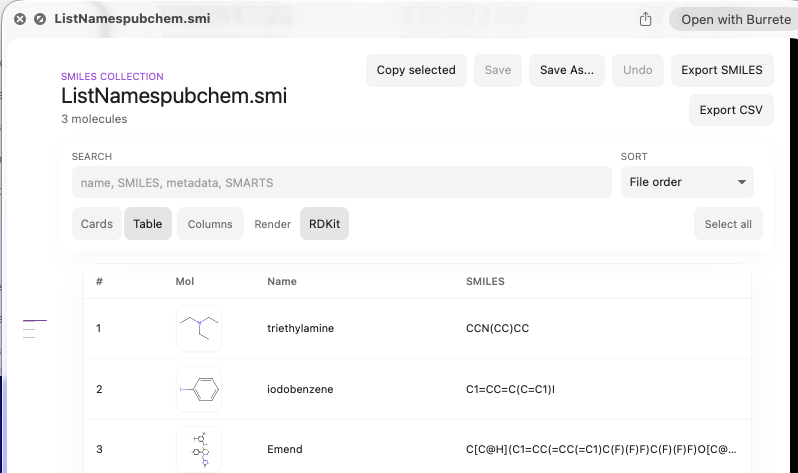
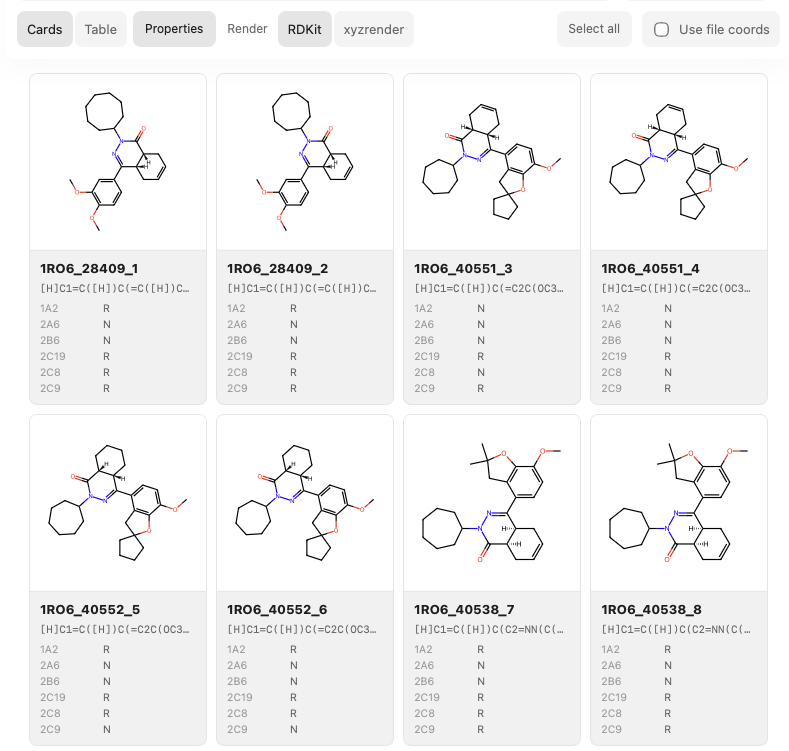
If the file contains multiple SMILES strings all the structures are rendered and can be displayed on individual cards or as a table.
If the SDF contains associated data fields they can also be displayed by clicking the “Properties” button.
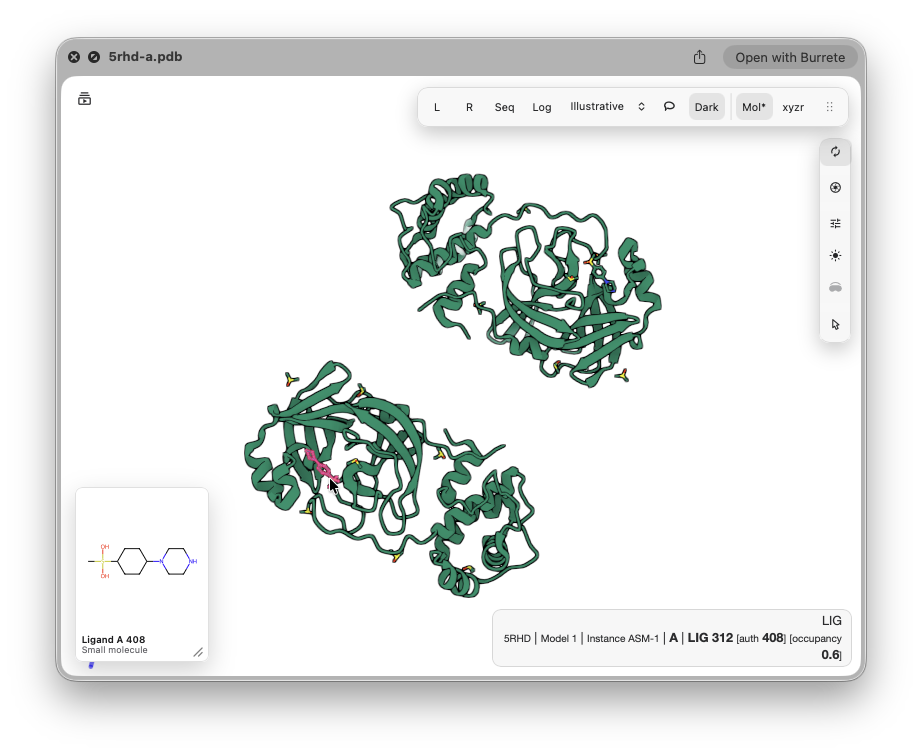
Other file types can also be previewed for example pdb files, in this case you can mouse over the display to highlight portions of the display for example the ligand. The structures can be smoothly rotated in 3D using the Mouse.
There are issues with this system, the same file type e.g. .sdf can be opened and viewed by a number of applications, and a given application can open multiple different file types, and different apps might also provide QuickLook extensions. Whilst you can turn off a particular QuickLook extension in System preferences, this eliminates QuickLook views for every file type registered for that extension. I’ve not found a way to assign a particular file type to a particular QuickLook extension.
There is also the issue of file types, macOS uses a combination of Uniform Type Identifier (UTI) and file extensions. Unfortunately this system means that you can have a single file type with multiple entries in the database of UTI. You can examine this using utitool (https://github.com/smittytone/utitool). Examining sdf we get
(base) chrisswain@Mac-Studio ~ % utitool -e sdf
UTI information for file extension .sdf
1. com.mdli.sketchfile
   Content type: MDL SDfile
   MIME types registered: chemical/x-mdl-sdfile
   UTI is registered with the system
2. com.revvity.external.sdf3
   Content type: MDL SDfile V3000
   MIME types registered: chemical/x-mdl-sdfile
   UTI is registered with the system
3. com.local.burrete10.sdf
   Content type: Structure-data molecular file
   MIME types registered: chemical/x-mdl-sdfile
   UTI is registered with the system
When macOS looks up sdf it finds com.mdli.sketchfile first and uses the appropriate QuickLook generator. The order in which entries appear in the database will vary from Mac to Mac depending on the order in which applications were installed. Finder’s Get Info command allows you to target files to a specific app for opening, but has no effect on app extensions providing QuickLook previews and Finder icon thumbnails.
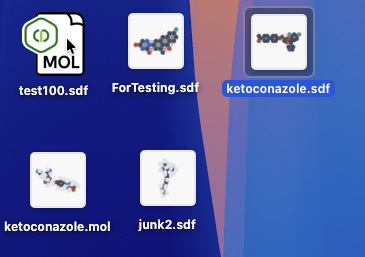
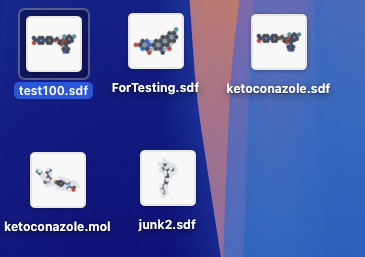
The Burette developer Sergei Nikolenko has done a fabulous job in sorting this out and the latest update is pretty reliable. Now when you QuickLook at a file the icon changes to reflect the contents of the file, as shown below, where the top right icon has changed from a generic icon to the view of the file contents
 |  |
This it is also visible when you use “Get Info”
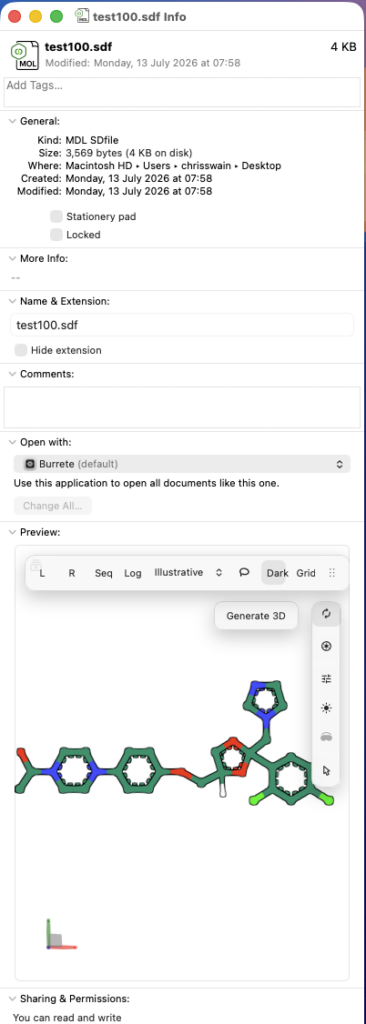
Whilst QuickLook can be viewed by simply hitting the spacebar, using option-space opens in full screen, it can also be activated from the command-line
qlmanage -p <path to file>The more options are available if the file is opened in the Burette app itself as shown below.
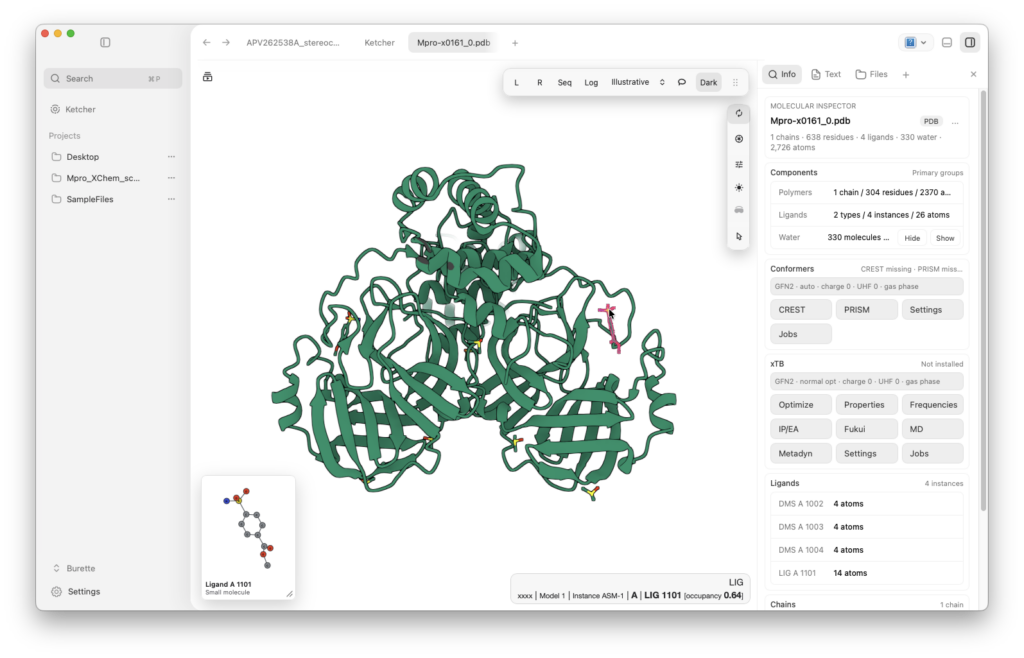
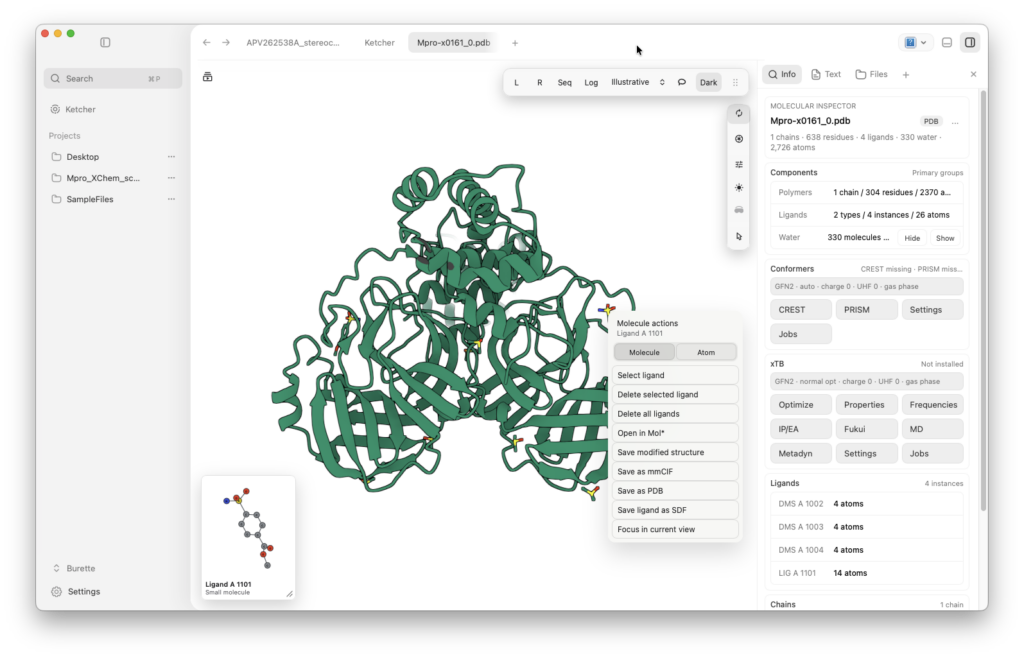
Right-click on the ligand reveals a dropdown menu with additional options.
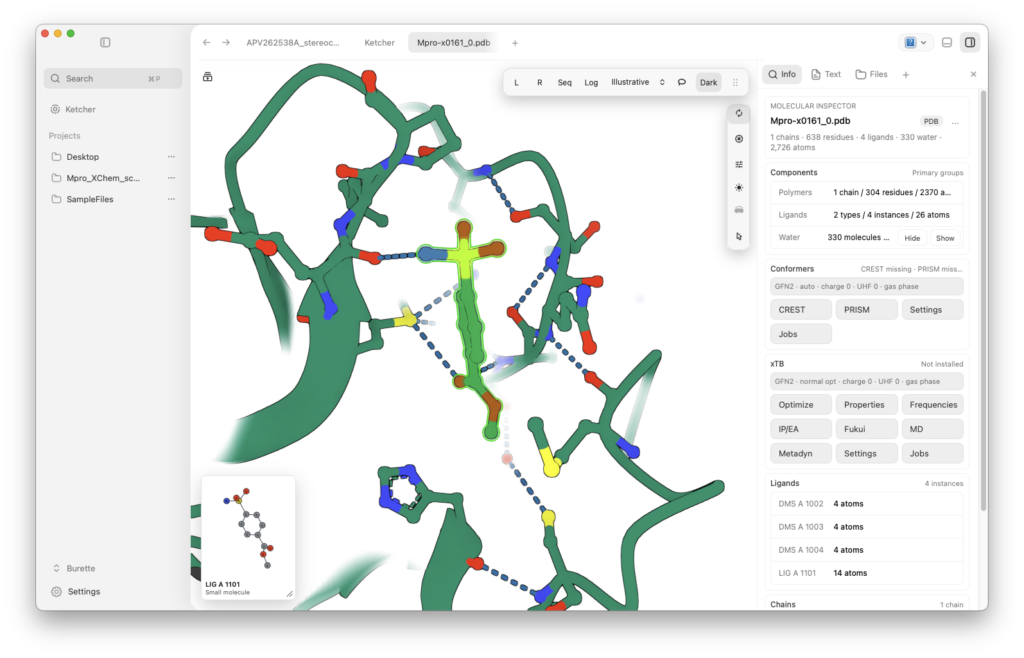
Double-click on the ligand to bring up a close up view showing ligand interactions
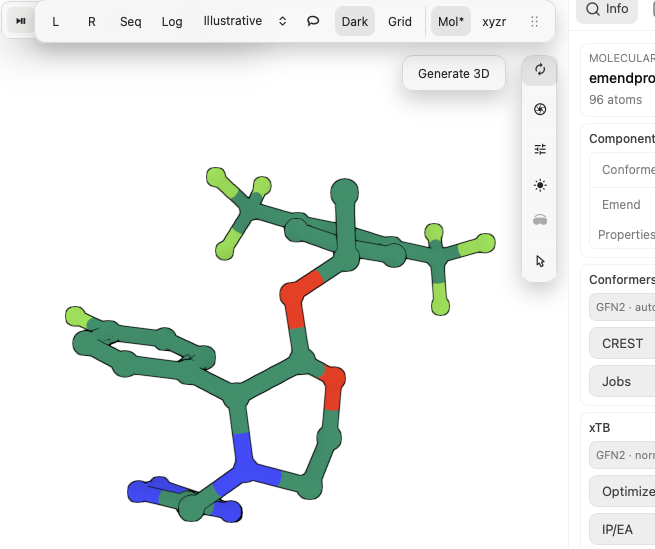
If you open a 2D sdf file there is an option to convert to 3D
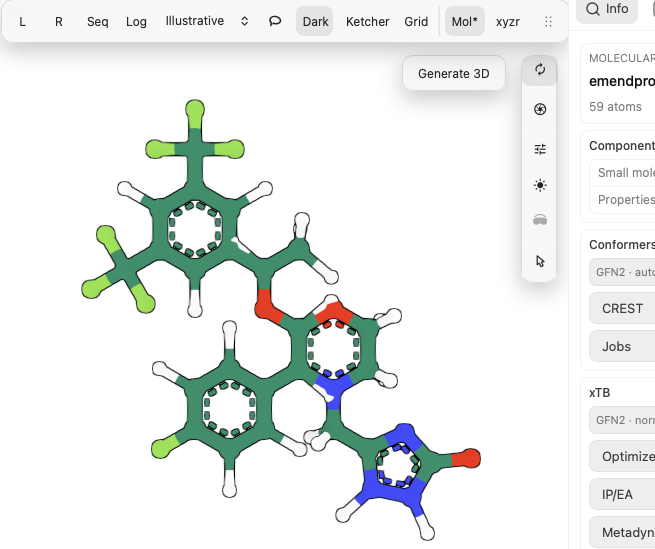
There can of course be multiple reasonable conformations but the 3D structure generated is a reasonable starting point.
Burette is a really nice application, it is clearly a work in progress and the developer is really responsive so please try it out and provide feedback.
Credit also goes to the open-source projects behind much of the 3D viewing: Mol* (https://molstar.org/) provides the interactive molecular visualisation, while XYZRender (https://github.com/aligfellow/xyzrender) powers the publication-quality rendering in the XYZR view.