This morning I tried to print something to my HP LaserJet Pro printer and got an error.
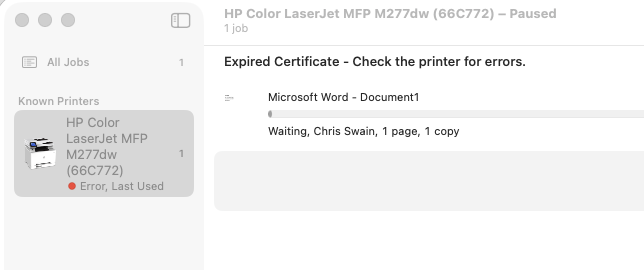
A quick search of the HP website suggested downloading the HP app to update the certificate. This I did but when I navigated to the printer settings it was blank?
The next suggestion on the HP website was to update the Embedded Web Server (EWS) by hand. The instructions are below. It appears you first need to purchase a windows computer!
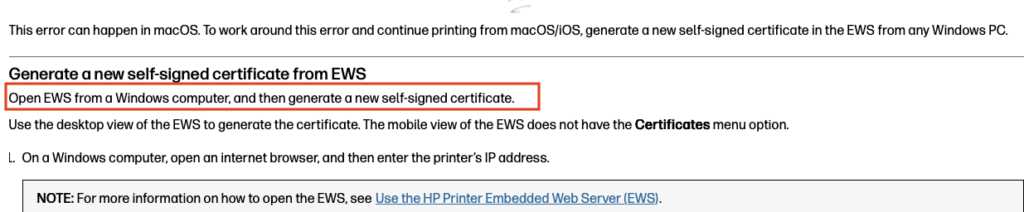
A bit more searching and I stumbled across a number of posts that together provided the solution and I thought I’d include a post that others might find useful.
First open Printer & Scanners settings and select the relevant printer.
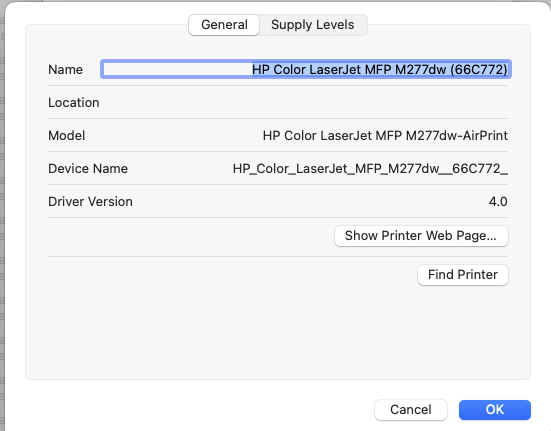
Now click on the Show Printer Web Page button, I presume the certificate has expired you will get a warning not to proceed, continue onwards, ignoring the warning dialog and you should get the printer web page
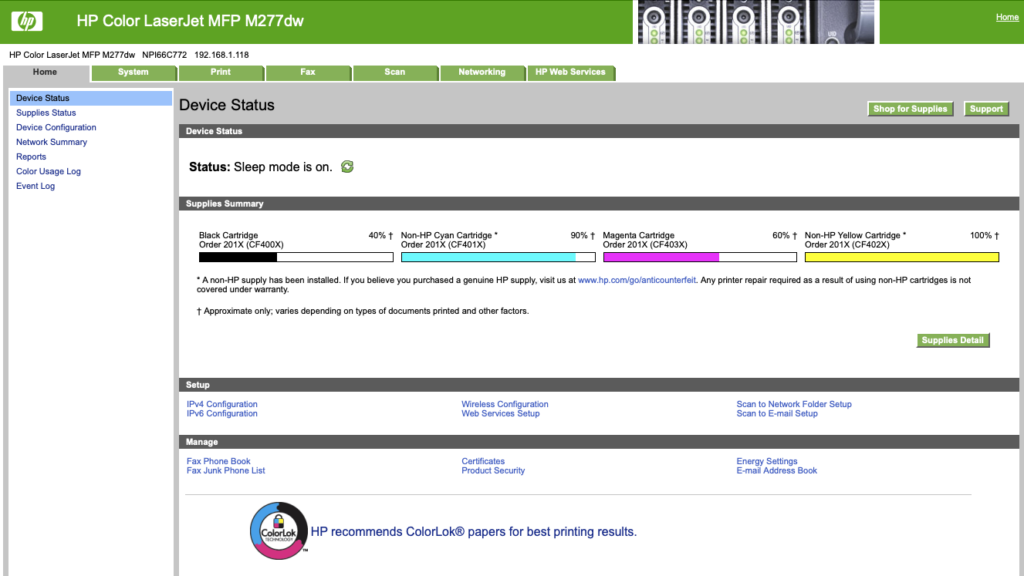
Select the Networking tab, and under security select “Certificates”
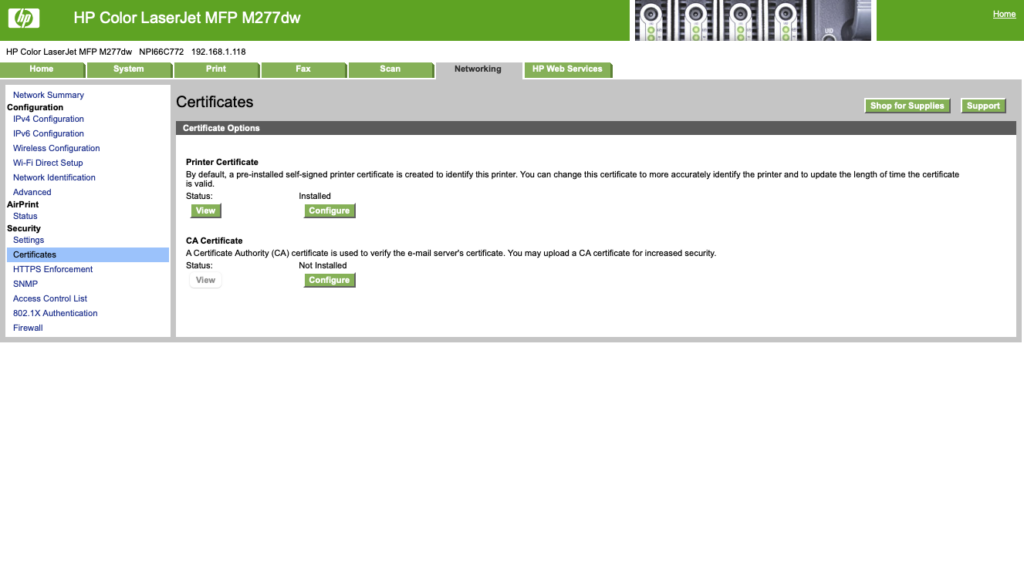
Now click on the Installed “Configure” button and you should see the Printer Certificate Options
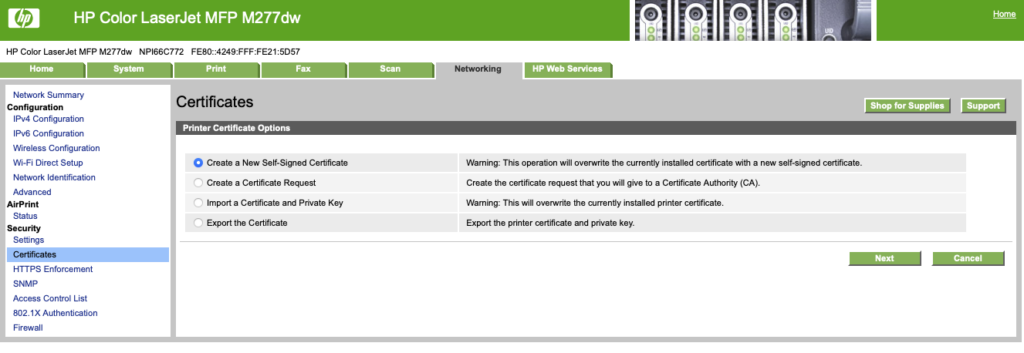
Now select Create a New Self-Signed Certificate, then click the next button. Edit the validity period and then click finish. It will take a few minutes for the new certificate to be created and installed.
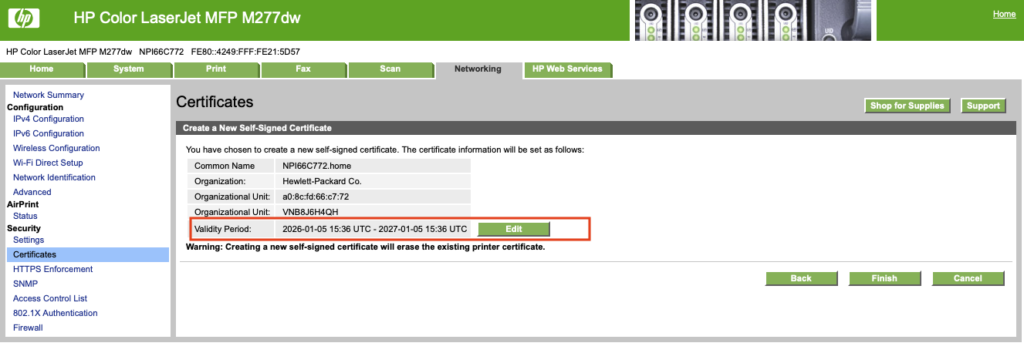
You should then be able to print.